POS & Sales
Registers, POS styles, payments, holds, refunds, invoices, terminals, and promotions.
Before selling
In Settings → POS, choose the experience and security rules. In Sales → POS, pair this device to an outlet terminal if requested. Count cash and open a cashier-owned register. A second cashier cannot take over that terminal while the first session is open. Owner/Manager may configure scheduled opening and closing in Business Settings; manual opening before scheduled opening is allowed. After closing plus grace, use a separately approved overtime session with a reason and counted cash balance.
Sell in any POS style
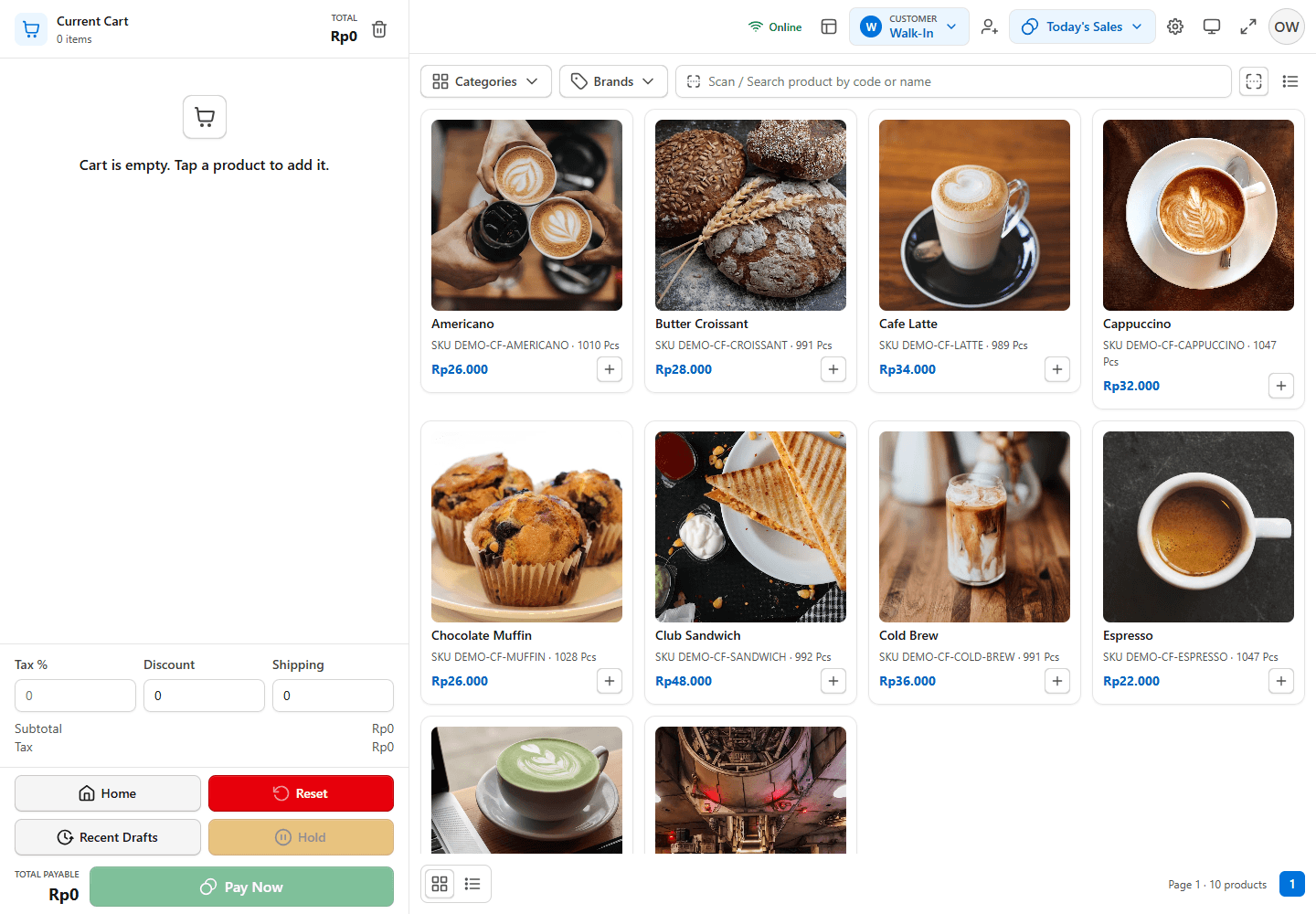
Choose the appropriate style: General Store, Coffee Shop/Cafe Bar, Supermarket, Pharmacy, or Restaurant. Search, scan, or click an item to add it to the cart. Select the correct variant and quantity, customer, tax/discount, and any required modifier or table. Hold a sale to resume later; Void cancels it with the required confirmation/approval. Offline POS can queue transactions when transport fails, but an authentication denial never unlocks offline access.
| Style | Primary workflow to check |
|---|---|
| General Store | Switch grid/list, search or scan, click anywhere on an item to add it, and keep the cart in view. |
| Coffee Shop / Cafe Bar | Add drinks and modifiers, hold a draft, manage current orders and customers, then pay. |
| Supermarket | Use barcode/price check, category picker, fast item grid, terminal status, hold/void, and refund lookup. |
| Pharmacy | Check the correct variant, batch and expiry before sale; unavailable/expired lots cannot pass checkout. |
| Restaurant | Choose dine-in, takeaway or delivery; where configured, assign table and send the order to the kitchen display before settlement. |
Complete payment and close the register
- Select Pay and review the final total, discounts, tax, and tender.
- For Split Pay, record each tender separately. Excess payment produces change from the cash drawer, even if another tender is non-cash.
- Confirm payment, then print or share the receipt. Sales appear in Sales → Transactions and Today's Sales according to the tenant System timezone.
- At end of shift, count the physical cash and close the register. An automatic close records the system balance as unreconciled until someone confirms the real cash count. Overtime is a separate session.
Transactions, returns, and invoices
Search Sales → Transactions by reference, date, customer, and status. Online orders carry an Online Order badge. Use the transaction actions for an authorized void or return/refund; provide a reason and any required manager PIN. A completed financial document is not silently edited: correction uses void/reversal and, when needed, reissue. Sales → Invoices creates and tracks invoices and print-ready documents. Sales → Customers handles customer records and loyalty balances. Sales → Promotions is available with its plugin.
Locked periods
A financial period that has been closed cannot be altered by voiding transactions until an Owner reopens it through the authorized accounting flow.
Terminals appears under Sales when POS Terminal Management is active. Use it to assign a terminal to an outlet/cashier, pair a device, toggle active status, and inspect its last register session. The base one-terminal-per-outlet flow works without the plugin.
For an authorized Return/Refund, open the original sale, select the refundable items and quantities, provide a reason, review the refund amount and payment route, and confirm any required approval. Verify inventory, customer points and the reversal entry afterward. Do not create a new negative sale as a shortcut.